Key Concepts
The Audit Trail is your accountability log. It captures changes made by admins and the system so you can answer "who changed this and when?" with confidence.
Audit Trail
A log of all configuration and admin changes in your workspace. Tracks who changed what and when for accountability.
Event
A single recorded action — a user creating, updating, or deleting something, or the system performing an automatic update.
System Event
An event triggered by the system rather than a user. Shown with "System" as the actor.
Audit Trail Page
The Audit Trail shows a chronological log of all configuration and admin changes across your workspace. Use it to track who changed what and when — useful for troubleshooting and compliance.
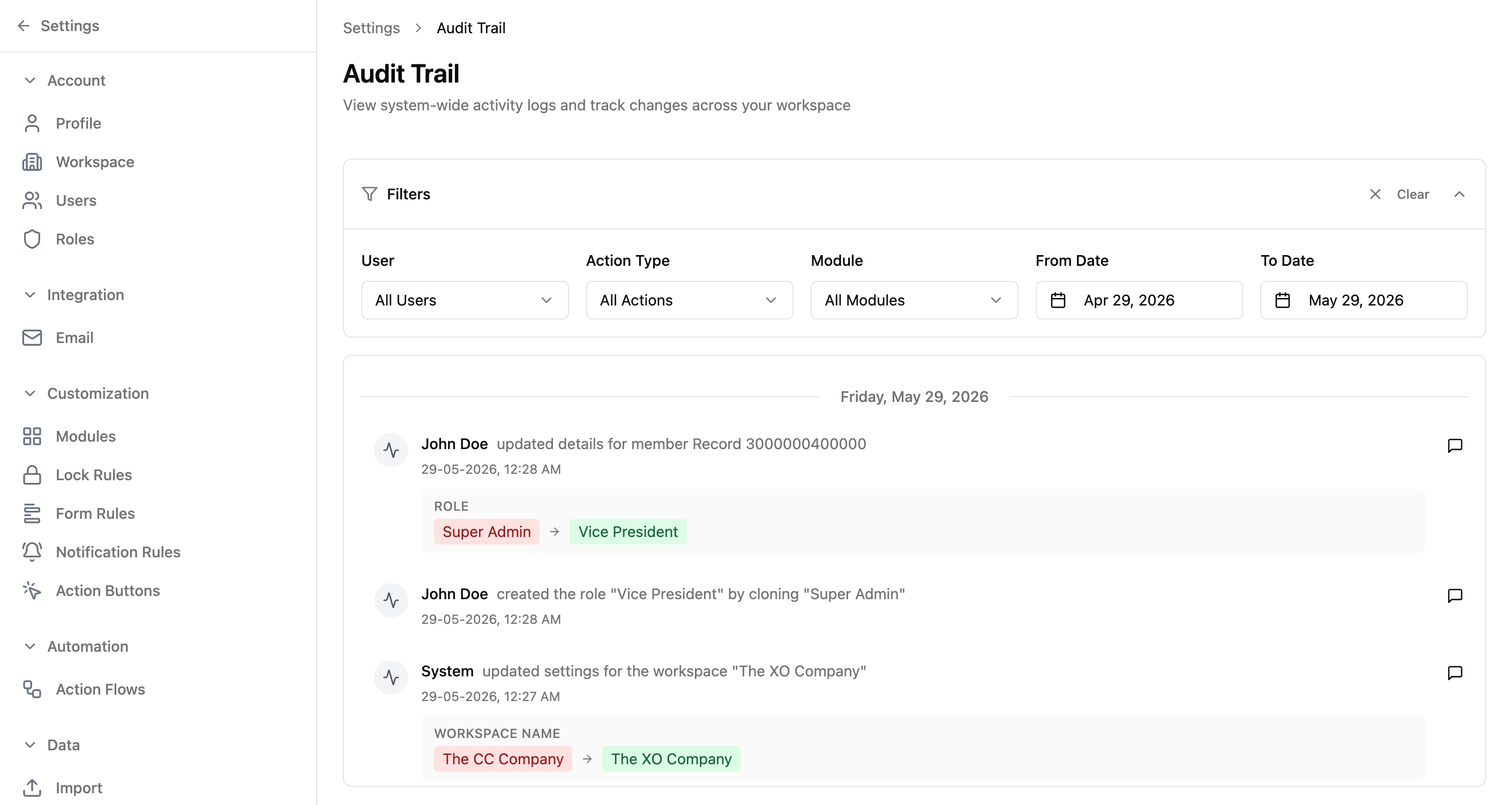
Filters
| Filter | Description |
|---|---|
| User | Dropdown to filter events by the user who performed the action. |
| Action Type | Dropdown to filter by action (e.g., created, updated, deleted). |
| Module | Dropdown to filter by which module was affected. |
| From Date | Date picker to set the start of the date range. |
| To Date | Date picker to set the end of the date range. |
Event Details
- Events are grouped by date with separator headings (e.g., "Today", "Yesterday", "March 15, 2024")
- Each event shows: user name, action description, and timestamp
- Some events include old → new value changes (e.g., "Status changed from 'Active' to 'Inactive'")
- System-generated events show "System" as the user name
Example Events
- "John Doe updated details for member..."
- "John Doe created the role 'Vice President' by cloning 'Super Admin'"
- "System updated settings for the workspace..."
Real-World Use Case
Financial services firm — compliance investigation
A financial services firm undergoes a quarterly compliance review. The compliance officer needs to verify that role changes, permission modifications, and data access adjustments were all properly authorized. The Audit Trail provides the evidence.
- 1Filter by Action Type = "updated" and Module = "Roles" to see all permission changes in the quarter
- 2Filter by User to verify that only authorized admins made configuration changes
- 3Set the date range to the quarter under review (e.g., Jan 1 – Mar 31)
- 4Review each event to confirm changes match approved change requests
- 5Filter by User = "System" to identify any automated changes that need documentation
- 6Export or screenshot the filtered results as evidence for the compliance report
Adapt this for your team: The Audit Trail is essential wherever accountability matters. A hospital can track who modified patient access permissions (HIPAA compliance). A government agency can prove who changed document classifications. A school can verify who adjusted grading permissions during exam season. Any regulated industry benefits from a clear record of who changed what and when.
Common Workflows
Investigate a configuration change
- 1Go to Settings → Audit Trail
- 2Use the User filter to narrow down to a specific person
- 3Use the Action Type filter to find specific operations (e.g., "updated")
- 4Set a date range with From Date and To Date
- 5Review the event details to see what was changed and the old/new values
Review system-generated changes
- 1Go to Settings → Audit Trail
- 2Filter by User = "System"
- 3Set the date range to the period in question
- 4Review automated changes — like field updates from action flows or schedule-based rules