Overview
Advanced filters let you narrow down which records appear in a list using field conditions. You can apply a filter for a single session or save it for reuse.
Advanced Filters
Field-based conditions that narrow down which records appear in the list. Can be applied temporarily or saved.
Condition
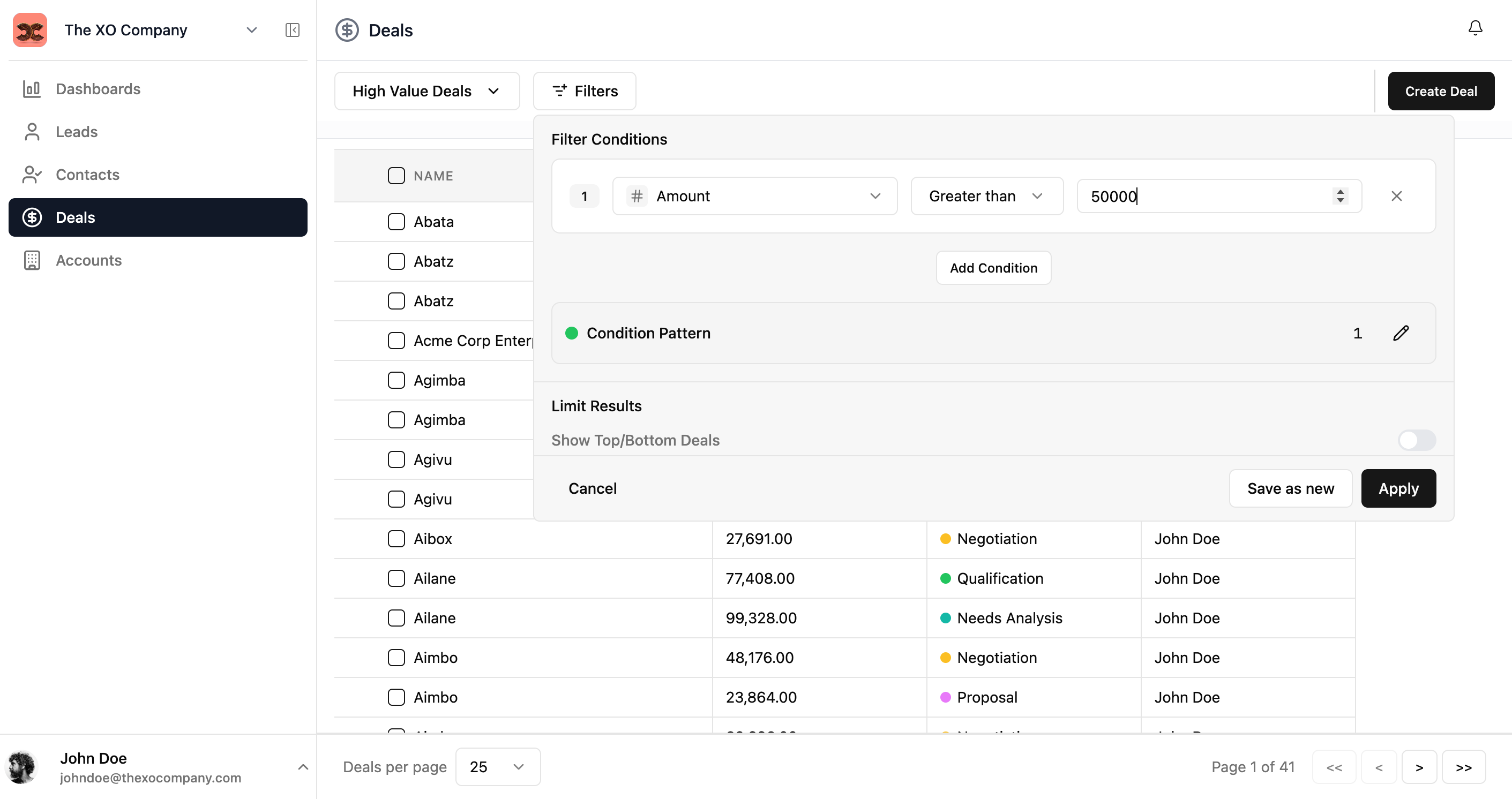
A single filter rule made up of a field, operator, and value (e.g., Amount greater than 50,000).
Saved Filter
A named filter that persists between sessions and can be shared, pinned, or set as default.
Pin
Keeps a saved filter visible as a chip in the toolbar for quick one-click reuse.
Related guide: See Custom Lists for saving column layouts. Filters and custom lists work together — apply a saved filter on top of any custom list to narrow further.
Applying Filters
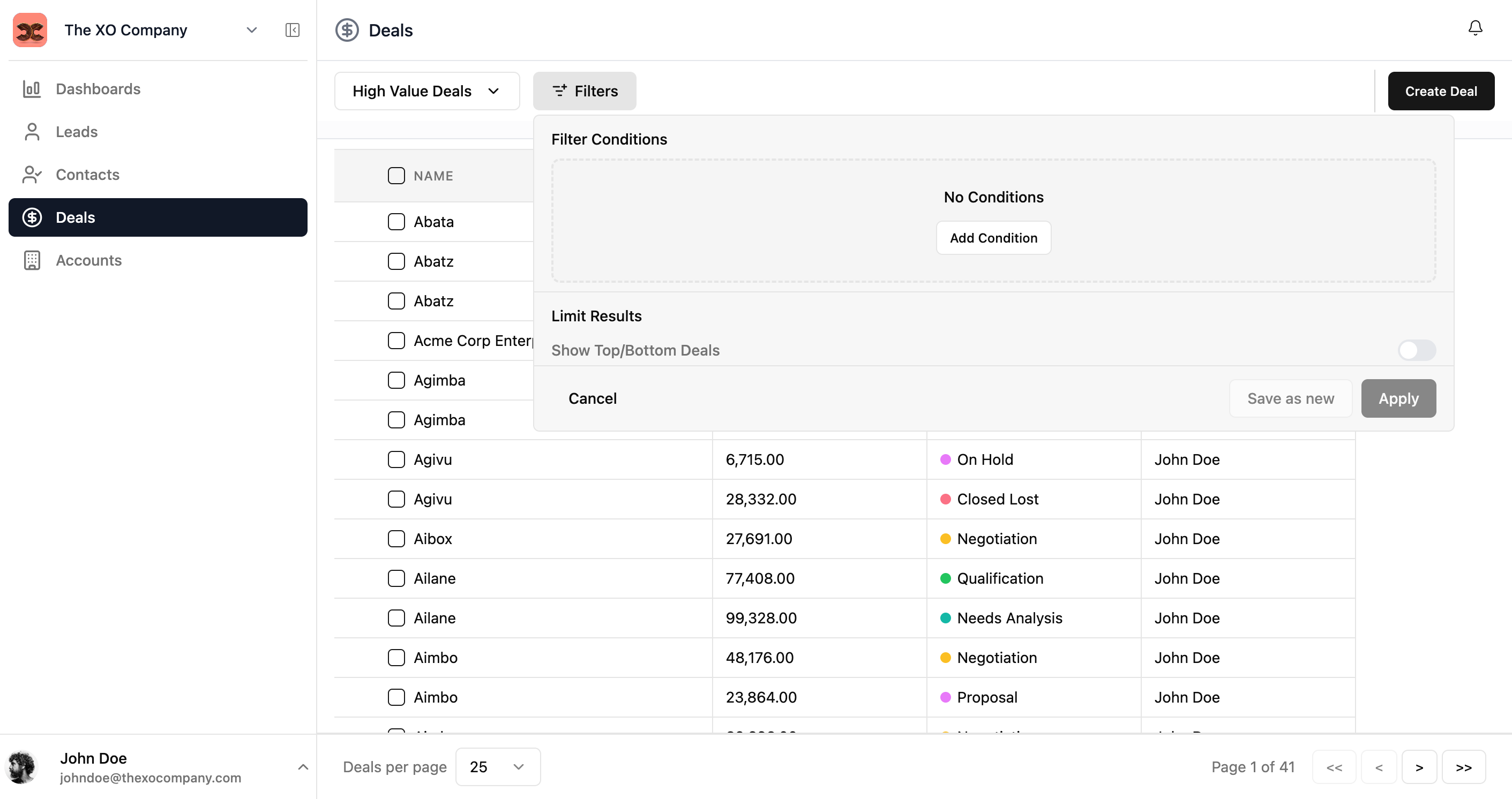
Open the Filters panel from the list toolbar to add one or more conditions. Combine conditions with AND/OR logic to express exactly what you need.
- 1Click the Filters button in the list view toolbar.
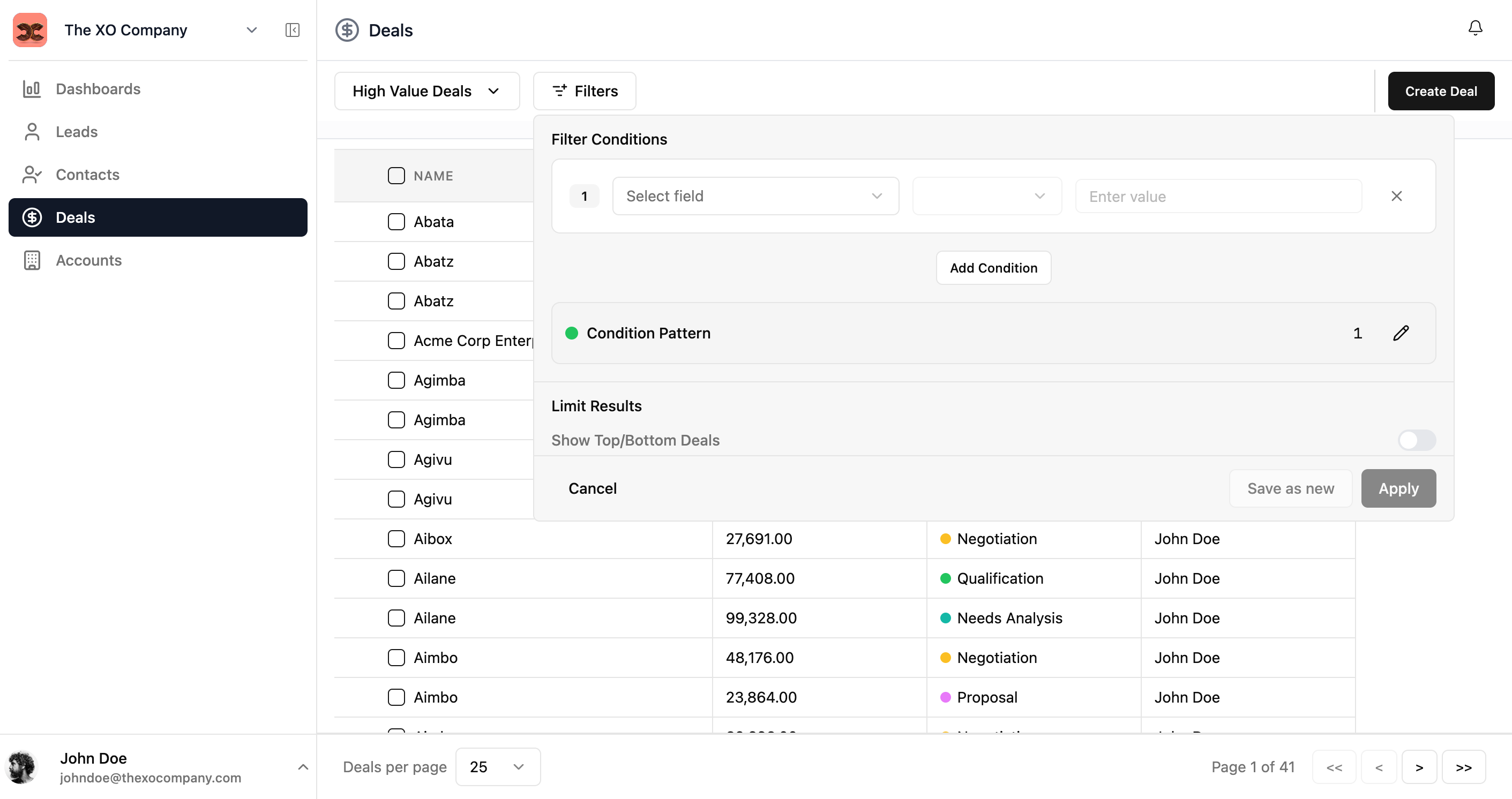
- 2Click Add Condition to create a filter rule.
- 3Select a field (e.g., Amount, Stage, Close Date).
- 4Choose an operator (Is, Greater than, Less than, Between, etc.).
- 5Enter the comparison value.
- 6Click Apply to filter the list.
Operators
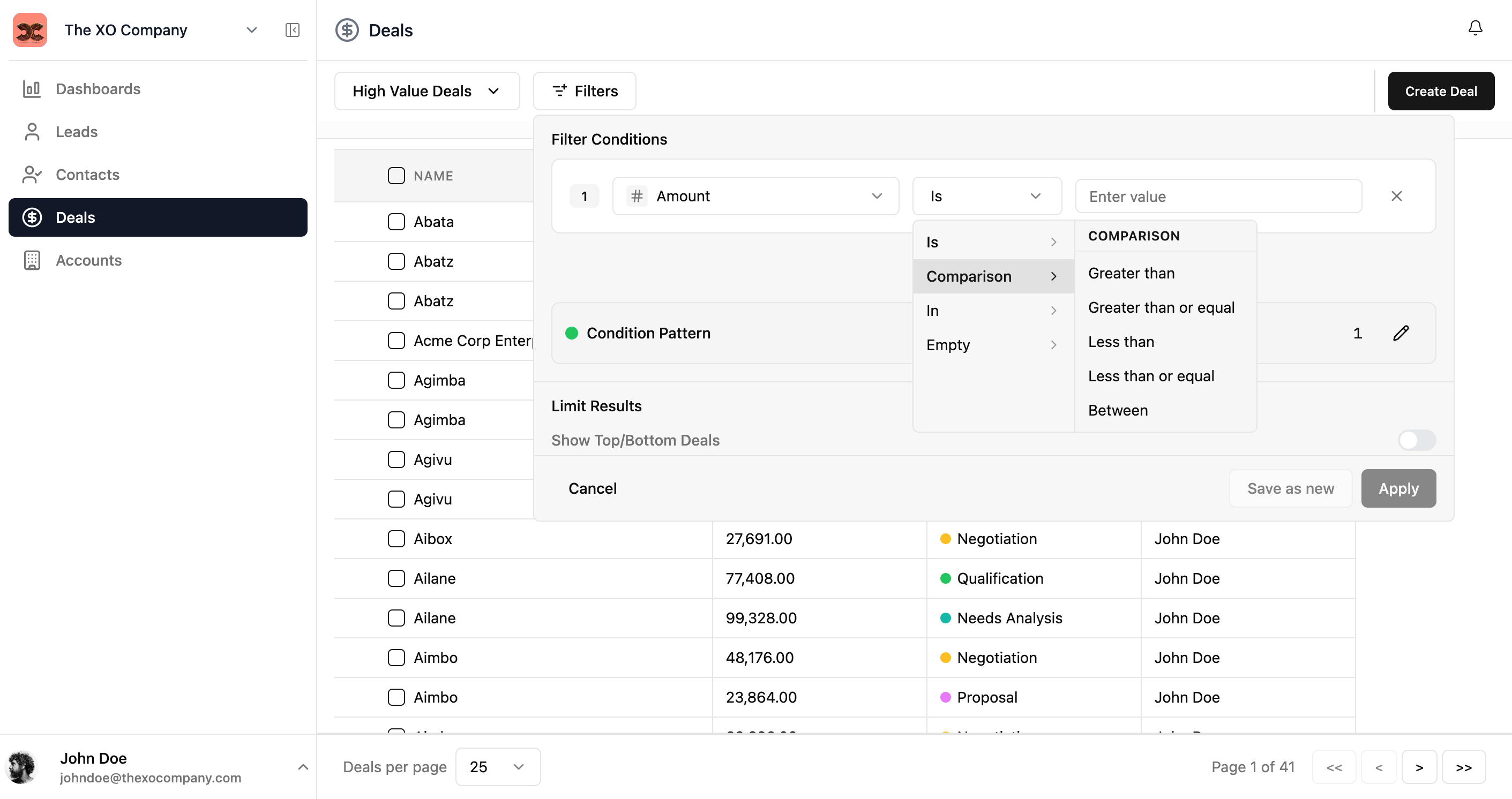
Available operators depend on the field type. Numeric, currency, and date fields support comparison operators; text fields support exact match and contains; multi-value fields support "In".
| Category | Operators |
|---|---|
| Is | Exact match — the field value equals the specified value. |
| Comparison | Greater than, Greater than or equal, Less than, Less than or equal, Between. |
| In | The field value matches one of several specified values. |
| Empty | The field has no value set. |
Saving & Sharing Filters
After configuring a filter, you have two options:
| Action | Description |
|---|---|
| Apply | Applies the filter temporarily to the current session. Navigating away clears it. |
| Save as new | Saves the filter as a reusable named filter that persists and can be shared. |
Saved Filter Actions
Once a filter is saved, it appears as a chip in the filter toolbar. You can:
- Pin — Keep the filter visible in the toolbar for quick access.
- Set as default — Auto-apply this filter whenever you open the module.
- Share — Make the filter available to other users or roles.
- Edit — Modify the filter conditions.
- Delete — Remove the saved filter permanently.
Common Workflows
Find high-value records quickly
- 1Click Filters in the list toolbar
- 2Click Add Condition
- 3Choose Amount, operator Greater than, value
50000 - 4Click Apply to filter the list
- 5Click Save as new to keep this filter for next time
Combine filters with a custom list
- 1Switch to your custom list from the view dropdown
- 2Open the Filters panel and add conditions
- 3Click Apply — the filters narrow results inside the custom list
- 4Optionally Save as new to keep the filter, then Pin it for one-click reuse
Auto-apply a filter every time you open the module
- 1Configure and save a filter (e.g., "Open Deals Closing This Month")
- 2From the saved filter chip, choose Set as default
- 3Navigating to the module now opens with the filter pre-applied