Key Concepts
Notification History is the receipt log for every alert your workspace sends — useful when a user says "I never got the email" and you need to confirm what really happened.
Notification History
A record of all notifications sent by the system. Shows delivery status, channel, and whether recipients read them.
Channel
Where the notification was delivered — in-app or email.
Delivery Status
Whether the notification was successfully delivered, failed, or is still pending.
Read Status
Whether the recipient has opened or acknowledged the notification.
Notification History Page
The Notification History page shows a record of all notifications sent by the system. Use it to verify delivery, check read status, and troubleshoot notification issues.
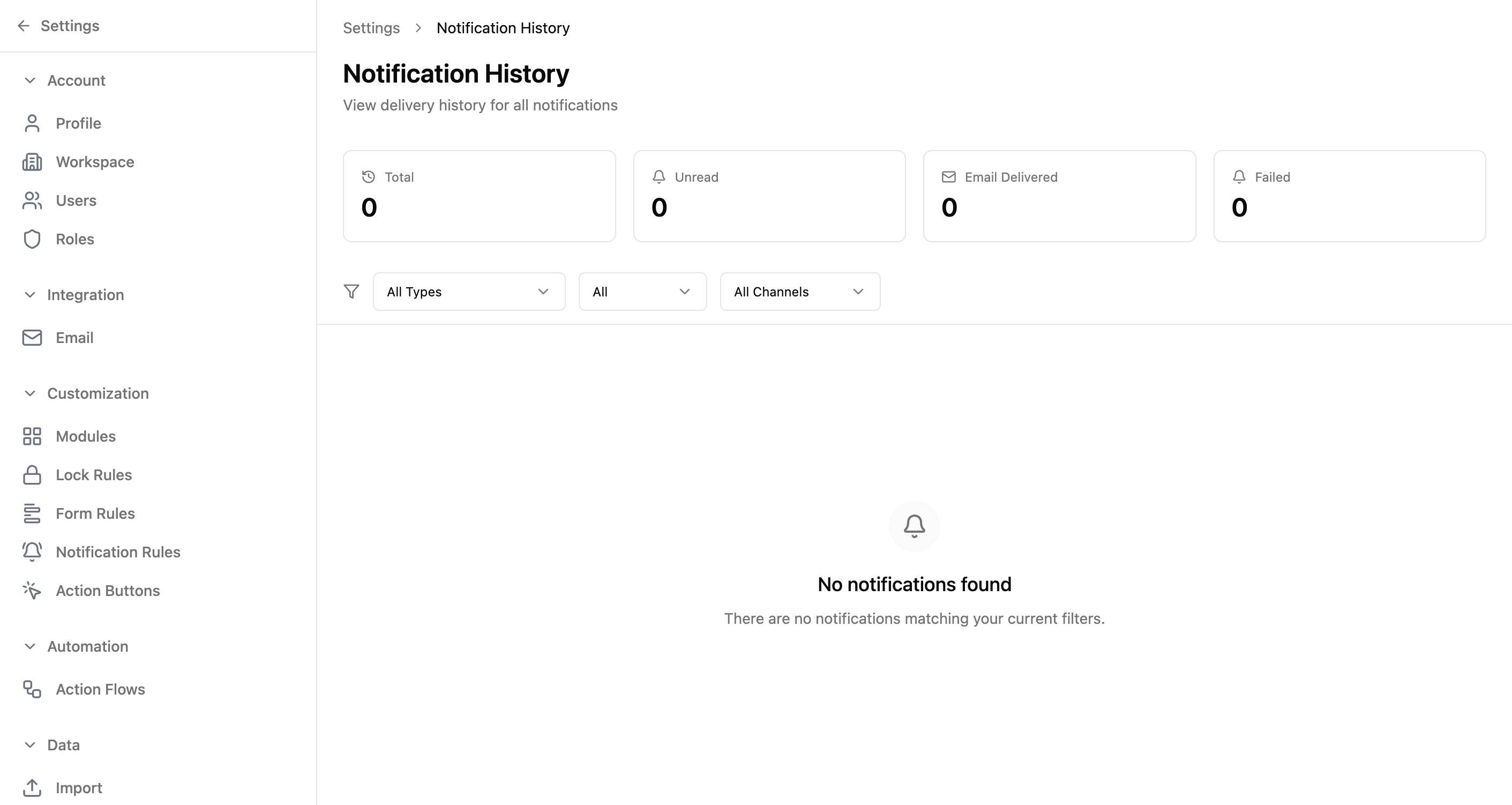
Stats Cards
| Card | Description |
|---|---|
| Total | Total number of notifications sent. |
| Unread | Notifications that haven't been read by recipients. |
| Email Delivered | Email notifications successfully delivered. |
| Failed | Notifications that failed to deliver. |
Filters
| Filter | Description |
|---|---|
| Type | Dropdown to filter by notification type (e.g., record created, assignment). |
| Status | Dropdown to filter by delivery status (e.g., delivered, failed, pending). |
| Channel | Dropdown to filter by delivery channel (e.g., in-app, email). |
Empty State
When no notifications match your filters, the page displays: "No notifications found" with the message "There are no notifications matching your current filters." Adjust your filters or wait for notification rules to trigger.
Real-World Use Case
SaaS company — debugging a missed renewal alert
A SaaS company's customer success team has a notification rule that alerts account managers 30 days before a subscription renewal. An account manager reports they never received the alert for a key client, and the renewal date passed. The Notification History helps pinpoint what went wrong.
- 1Filter by Channel = "Email" to check if the email was attempted
- 2Filter by Status = "Failed" to see if delivery failed (maybe the account manager's email bounced)
- 3If no record exists at all, the notification rule likely didn't trigger — check the rule's conditions and the record's field values at the time
- 4If the status shows "Delivered" but the user says they didn't see it, filter by Status to check read status — it may be sitting unread in their inbox
- 5Cross-reference with the Audit Trail to see if someone disabled the notification rule during that period
- 6Fix the root cause: update the email address, adjust the rule conditions, or re-enable the rule
Adapt this for your team: Notification History is your debugging tool for communication gaps. A hospital can verify that critical lab result alerts reached the right physician. A logistics company can confirm that shipment delay notifications were delivered to customers. A school can prove that parent notifications about absences were sent. Whenever someone says "I never got that alert," this page gives you the answer.
Common Workflows
Confirm whether a notification was delivered
- 1Go to Settings → Notification History
- 2Filter by Channel (in-app or email) to match what was supposed to be sent
- 3Filter by Status to see delivered, failed, or pending entries
- 4Locate the notification by recipient or timestamp
- 5Check the entry's status to confirm delivery and read state
Troubleshoot failed notifications
- 1Go to Settings → Notification History
- 2Filter by Status = "Failed"
- 3Review the failed entries to spot patterns (specific users, channels, or types)
- 4Cross-check with notification rules to see if recipients or templates need updating