Key Concepts
Notification rules let you automate alerts so the right people are informed the moment something relevant happens — without anyone having to manually follow up.
Notification Rule
An automated alert triggered by record events. Sends in-app or email notifications to specified recipients when conditions are met.
Event Type
What triggers the notification — e.g., record created, record updated, or a specific field change.
Recipient
Who receives a notification — a specific user, a role, or the record's owner.
Channel
How a notification is delivered — in-app, email, or both.
Announcement
A one-off broadcast message sent to all users or a selected group, outside of any record event.
Notification Rules Page
Notification rules define automated alerts that fire when specific record events occur. Configure who gets notified, through which channel, and under what conditions.
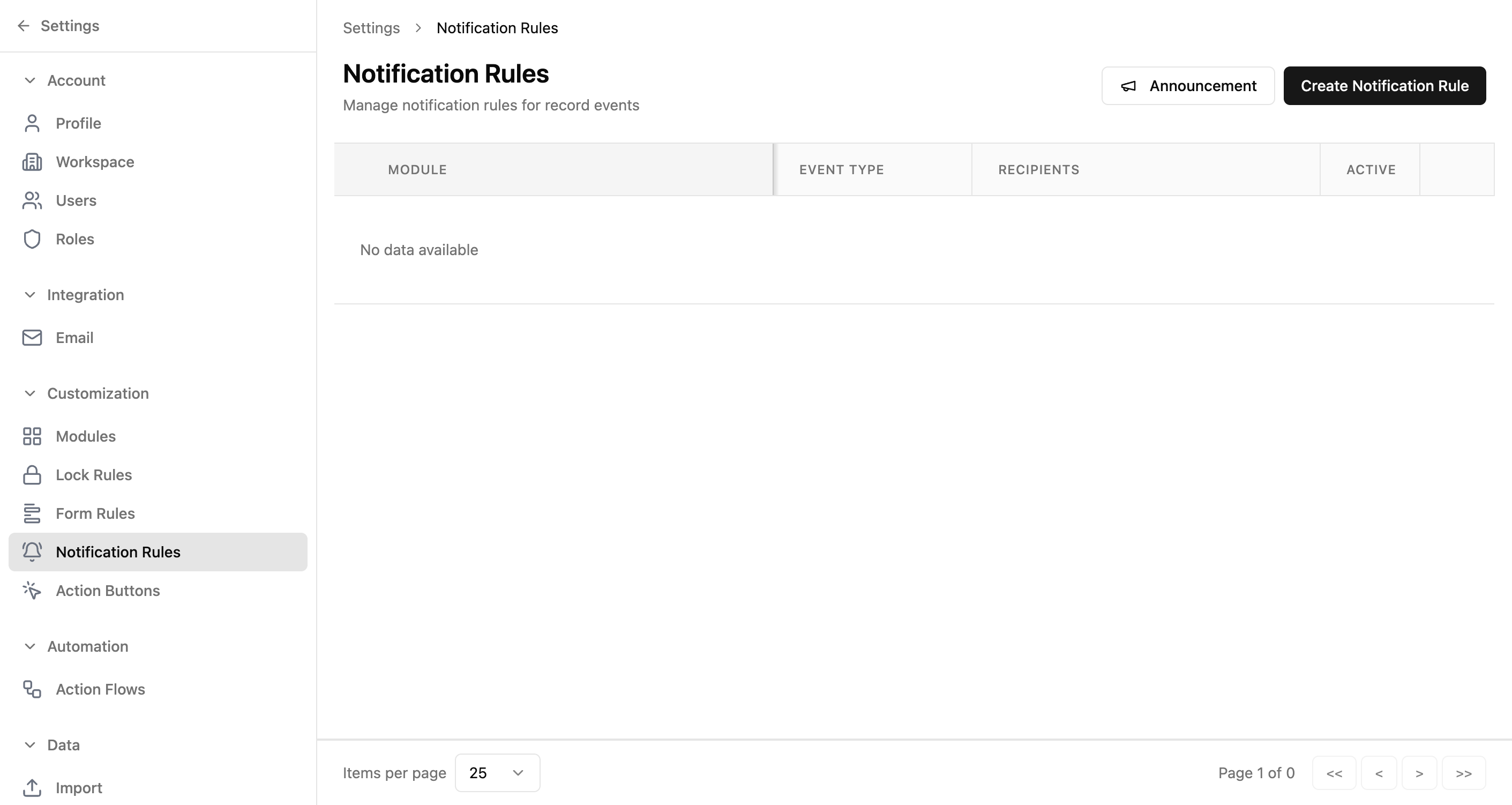
Table Columns
| Column | Description |
|---|---|
| Name | The notification rule's display name. |
| Event Type | What triggers the notification (e.g., record created, record updated). |
| Recipients | Who receives the notification (users, roles, or record owner). |
| Active | Whether the rule is currently enabled. |
| Actions | Three-dot menu with Edit and Delete options. |
Available Actions
| Action | How |
|---|---|
| Create a notification rule | Click the "Create Notification Rule" button (top right) |
| Send an announcement | Click the "Announcement" button to broadcast a message to all users |
| Edit a notification rule | Click the three-dot menu → Edit |
| Delete a notification rule | Click the three-dot menu → Delete |
| Enable/disable a rule | Toggle the Active switch in the table row |
Related guide: See Notification History to verify delivery, check read status, and troubleshoot notifications that were sent.
Real-World Use Case
Healthcare clinic — keeping the right people informed
A multi-location healthcare clinic needs different staff notified for different events. When a new patient appointment is created, the front desk and assigned doctor should know. When a lab result is updated, only the ordering physician should be alerted. When a billing record is created, the finance team needs an email.
- 1Create a rule "New Appointment Alert" — Event: Record Created in Appointments → Recipients: Record Owner (assigned doctor) + Front Desk role → Channel: In-app + Email
- 2Create a rule "Lab Result Ready" — Event: Field Change on Lab Results (Status → "Completed") → Recipient: Ordering Physician (lookup field) → Channel: In-app only
- 3Create a rule "New Billing Record" — Event: Record Created in Billing → Recipients: Finance Team role → Channel: Email only
- 4Create a rule "High Priority Patient" — Event: Field Change on Patients (Priority → "Critical") → Recipients: Department Head role → Channel: In-app + Email
- 5Use the Announcement feature to broadcast a one-off message about the new holiday schedule to all staff
Adapt this for your team: Notification rules keep the right people informed without manual follow-up. A construction company can notify project managers when material orders arrive. A school can alert teachers when a student's attendance drops below threshold. A retail chain can notify regional managers when inventory hits reorder levels. Set it once, and the system handles communication automatically.
Common Workflows
Set up automated notifications
- 1Go to Settings → Notification Rules
- 2Click "Create Notification Rule"
- 3Name the rule and select the event type (e.g., record created)
- 4Choose the target module
- 5Define recipients (specific users, roles, or record owner)
- 6Select notification channels (in-app, email, or both)
- 7Save and activate the rule
Send a one-off announcement to all users
- 1Go to Settings → Notification Rules
- 2Click the "Announcement" button
- 3Compose the message and choose recipients
- 4Send — the announcement is broadcast to the selected users